

New Outlook (formerly Windows Mail)
Add New Account
Startup
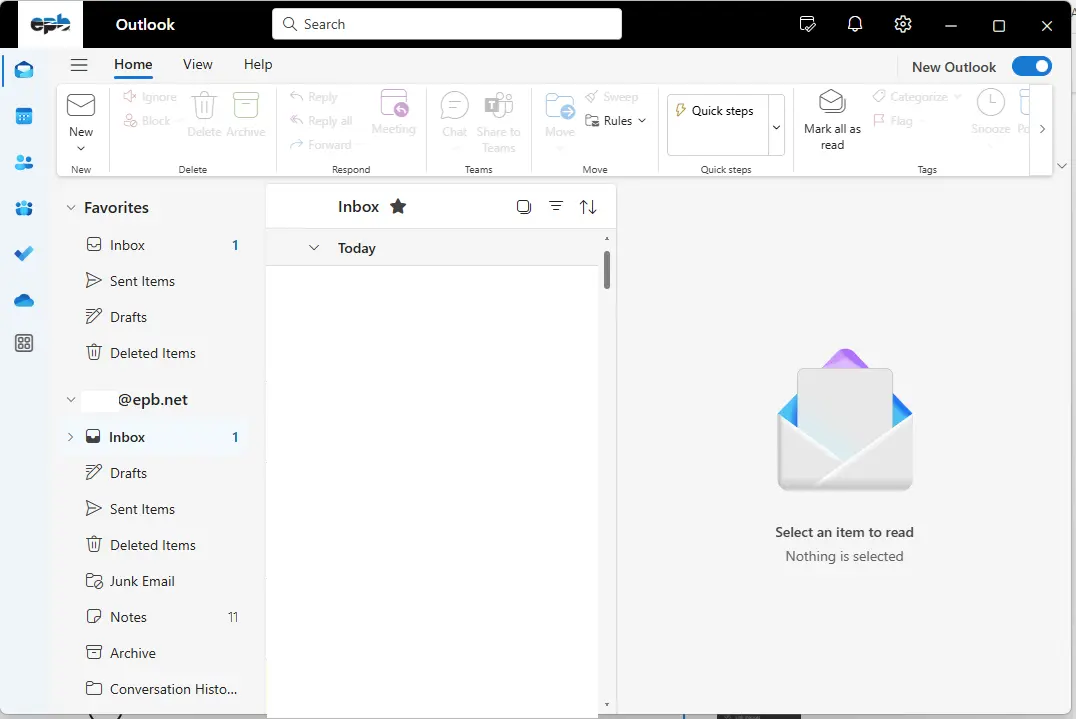
The app starts up looking like below.
Open Mail Settings
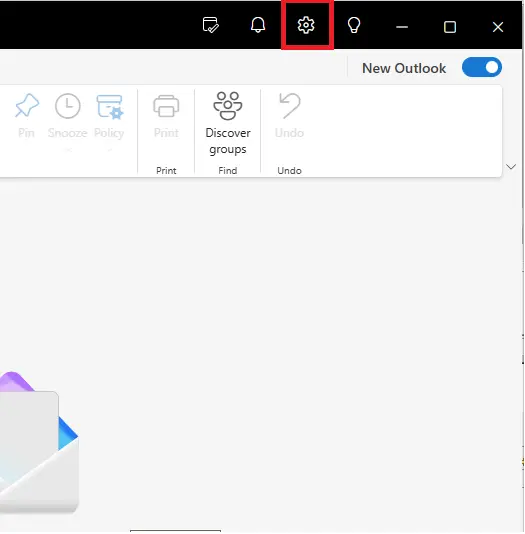
Go to the top right and click on the settings button.
Select Accounts & Email Accounts
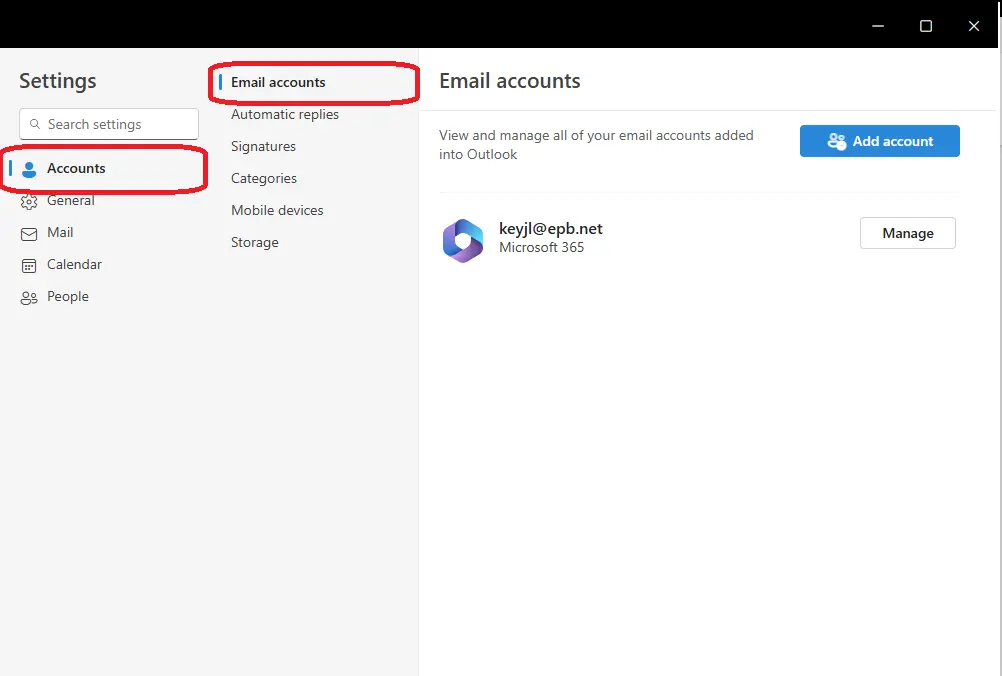
On the left side, select Accounts and Email Accounts
Select Add Account
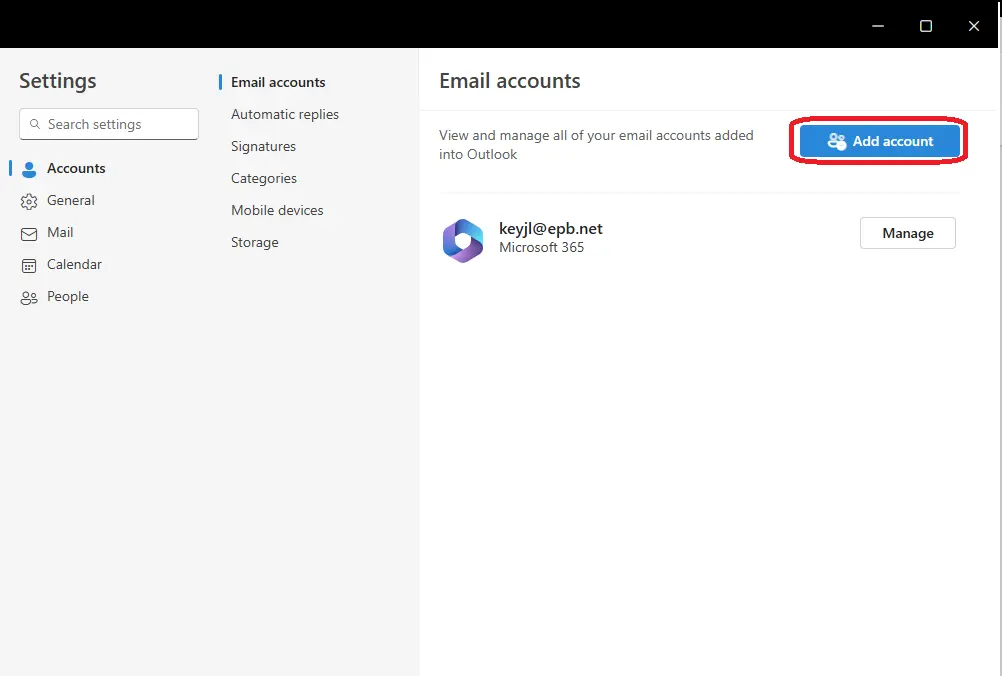
On the right side, click on Add Account.
Add Email Account
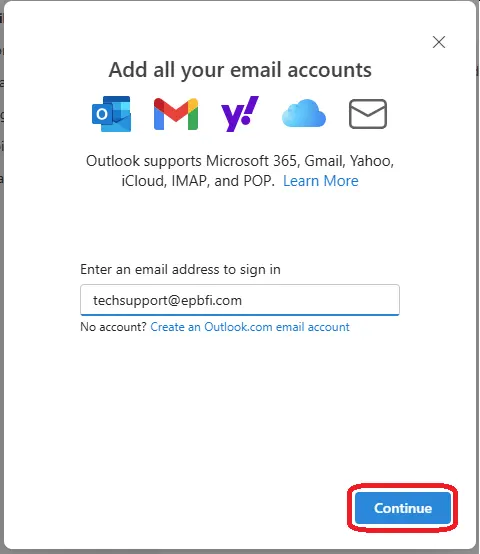
Enter your email address and hit contunue.
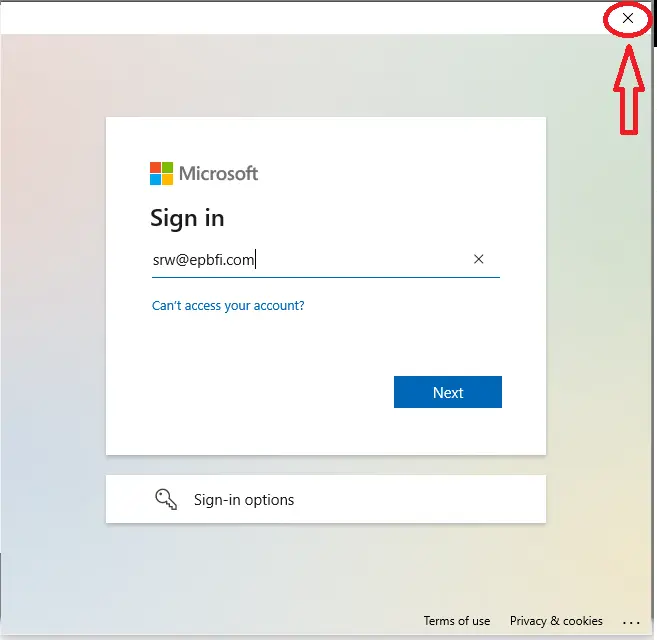
Microsoft Login pop up.
If you get this Microsoft login pop up, Just hit the "X" in the top right.
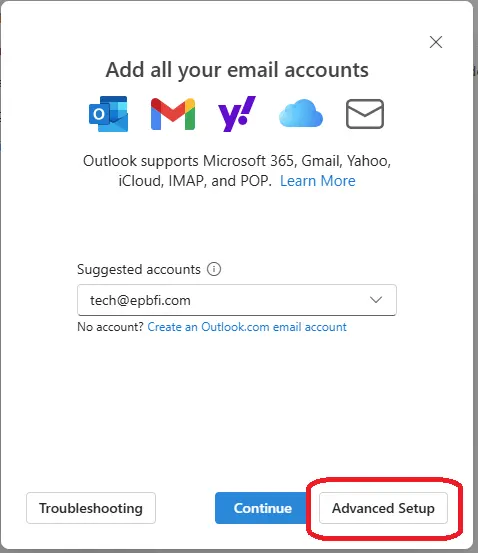
Select Advanced Setup
You will see a screen similar to the 'add account' step, but now there will be and Advanced Setup option.
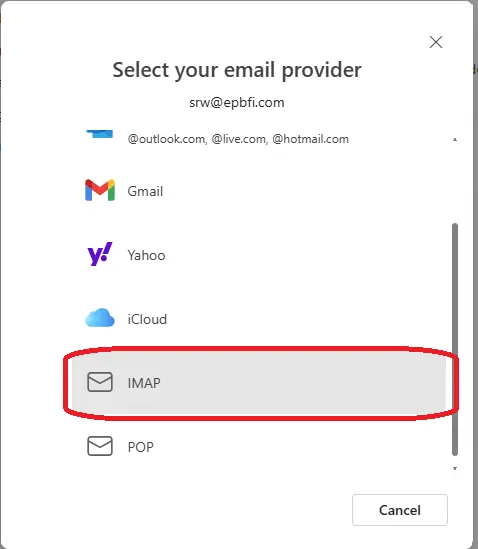
Select Account Provider
Scroll down and choose IMAP
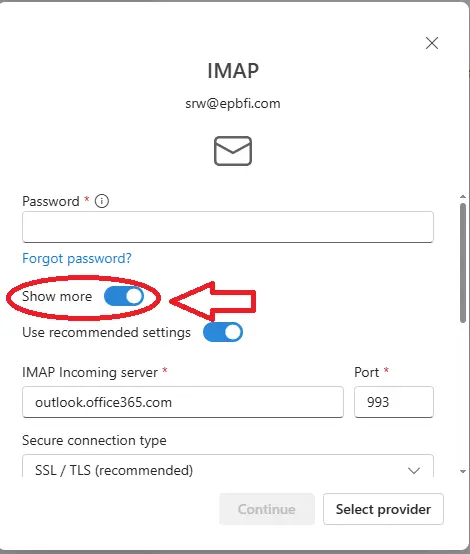
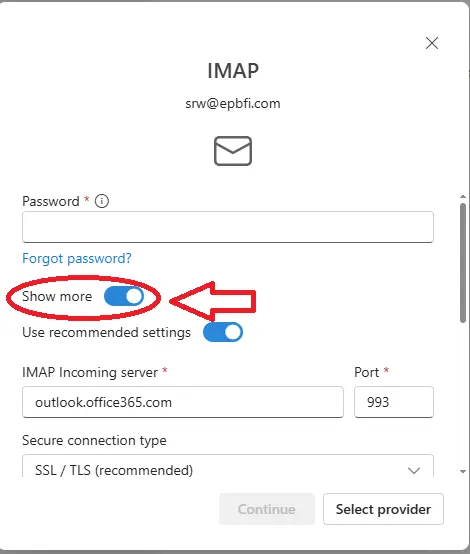
Enter IMAP information
- Enter password
- Select 'show more'
- Enter the incoming server names with the port.
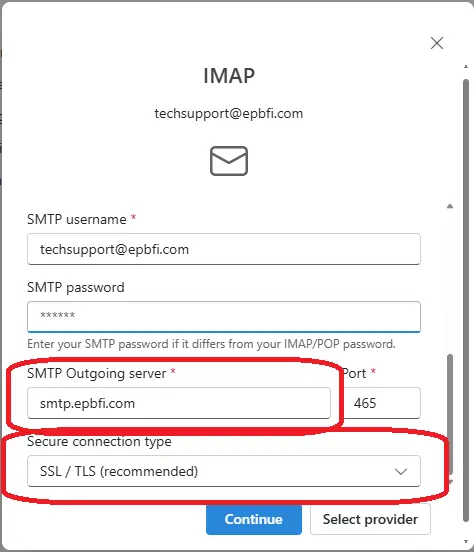
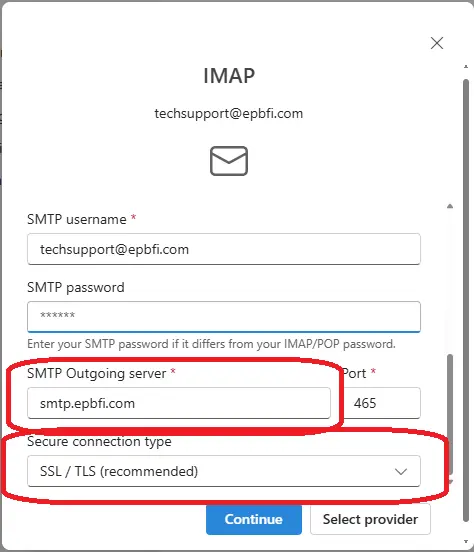
Scroll down and enter SMTP information
- Enter the Outgoing server.
- Check the secure connection type is set to SSL/TLS.
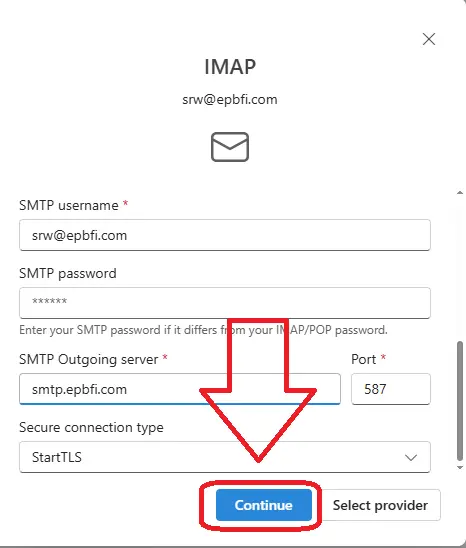
Verify information and Select Continue
Select continue.
All Done
You have now successfully added the email to the new Outlook app.
Update Password
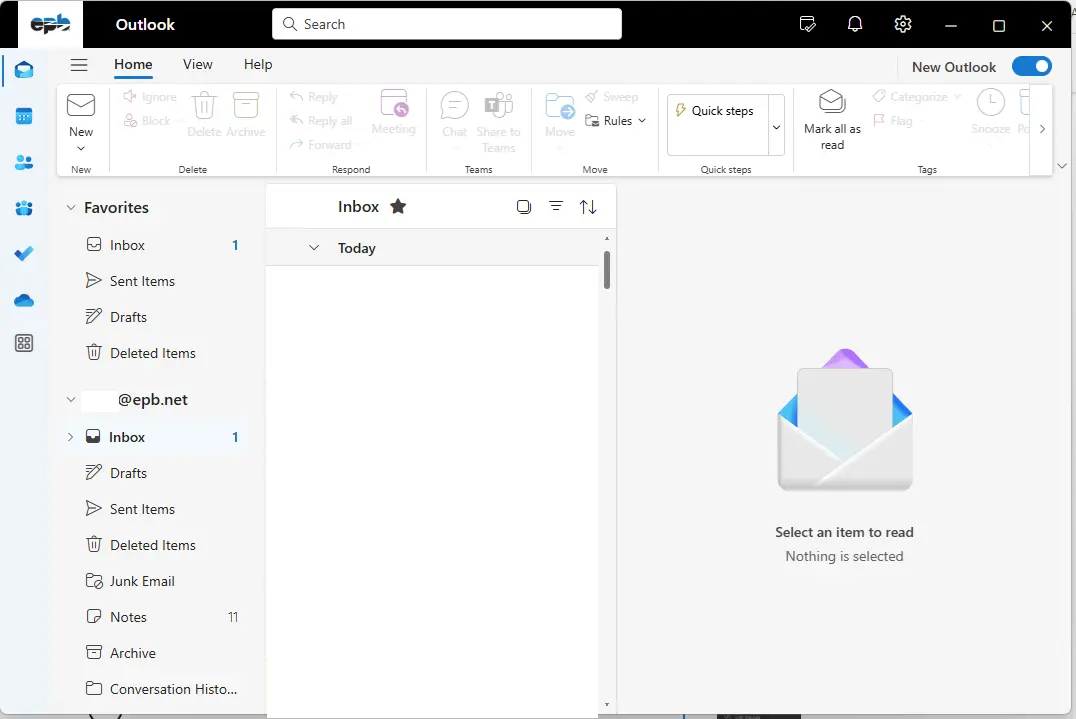
Startup
The app starts up looking like this.
Open Mail Settings
Go to the bottom left and click on the settings button.
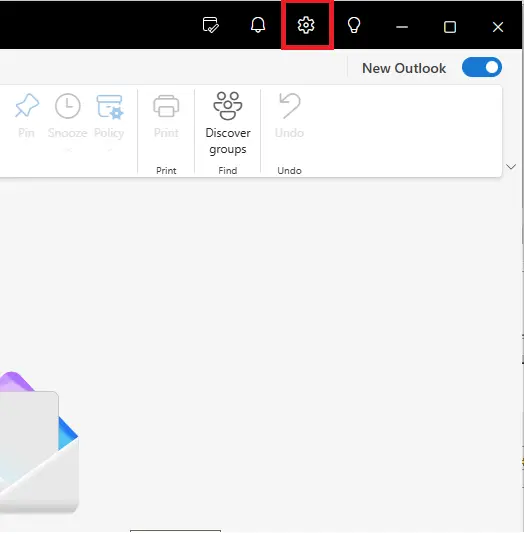
Select Accounts & Email Accounts
On the left side, select Accounts and Email Accounts
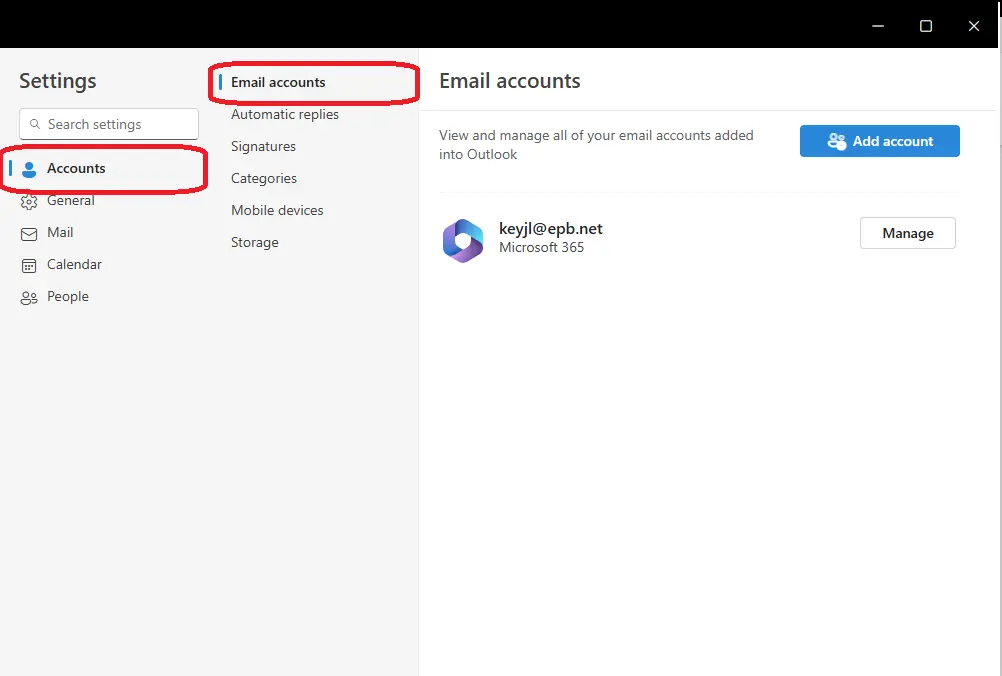
Select Manage Account
Click on manage account on the right side of the screen
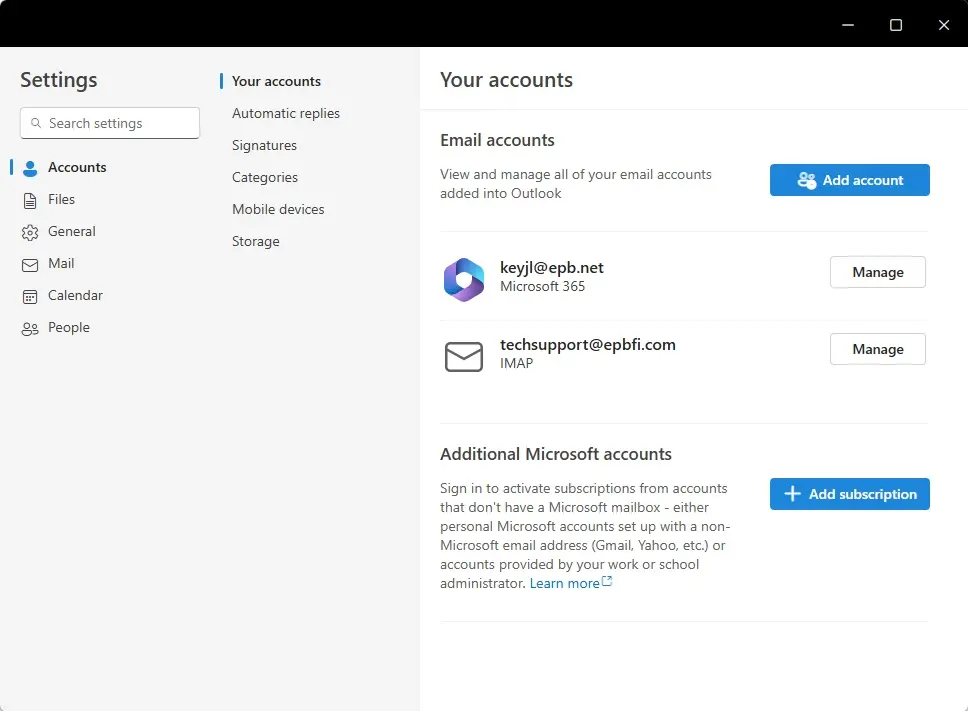
Repair account information
Scroll to the bottom and select Repair
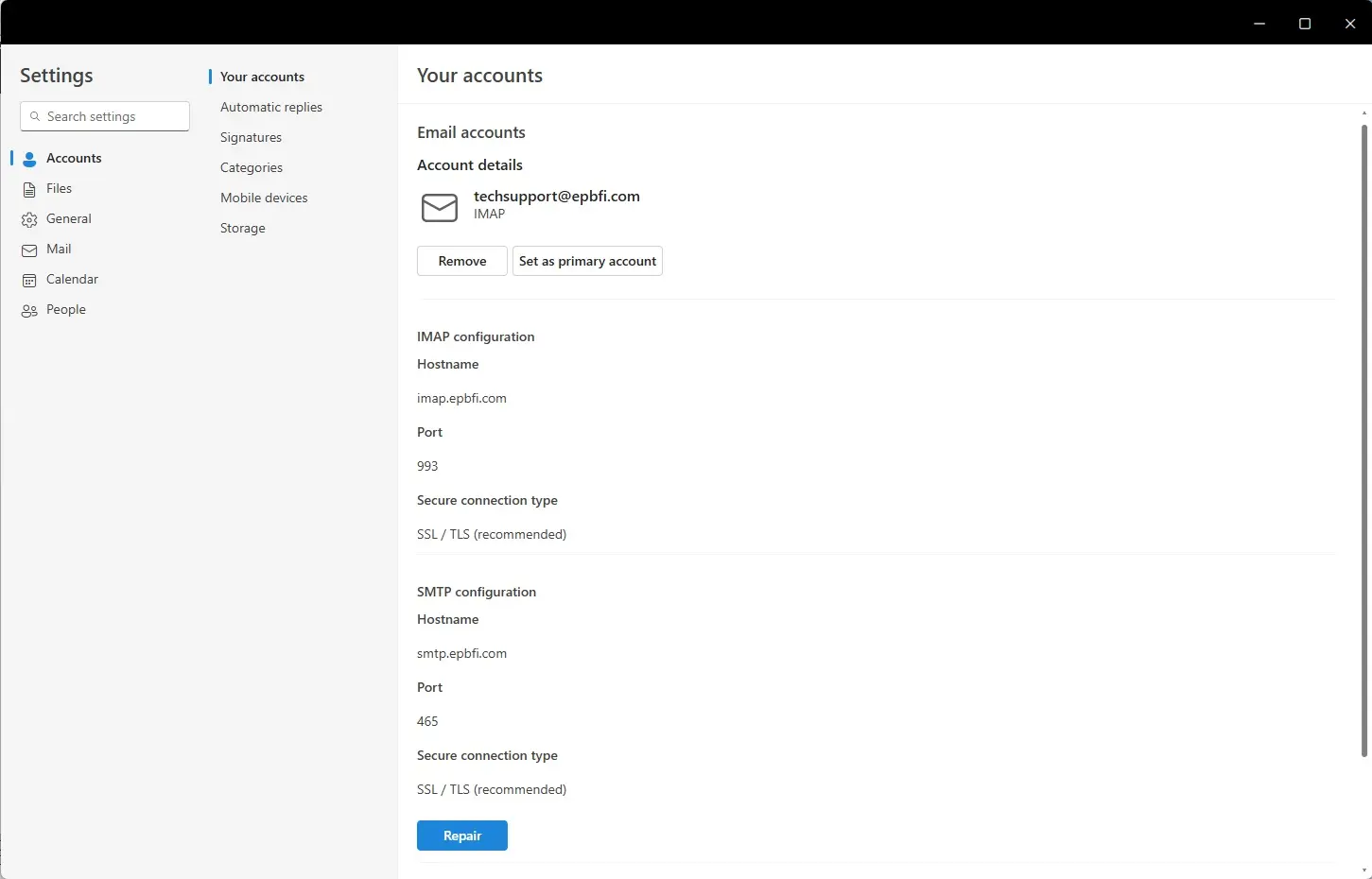
Update IMAP information
- Enter password
- Select 'show more'
- Enter the incoming server names with the port.
Scroll down and update SMTP information
- Enter the Outgoing server.
- Check the secure connection type is set to SSL/TLS.
All Updated
You have now updated the password for the new Outlook (formerly Mail) app.